Insert the back link
There are several ways to set up this kind of link.
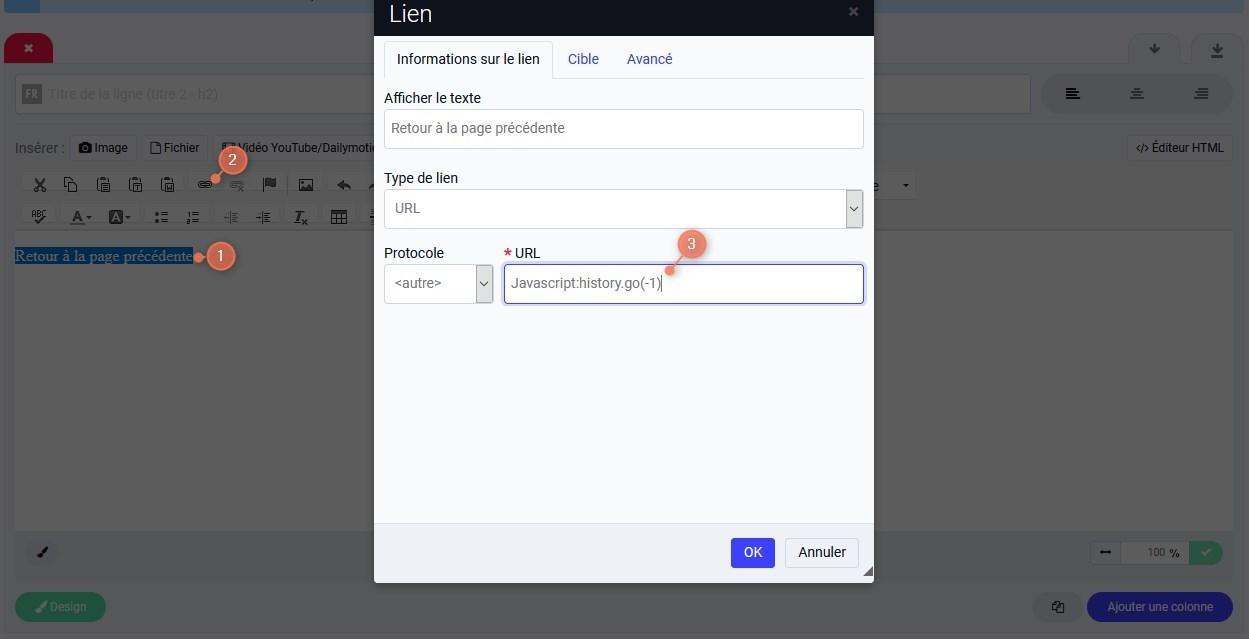
The simplest is to add some text in a visual editor on the page of your choice, for example "Back to the previous page", select it (1) and click the editor's link button (2).
In the link address field, paste the following value (3) : Javascript:history.go(-1)
Confirm the changes and save.
When this link is clicked, the user will be taken back to the previous page.
Add an image with a back link
For a nicer look, you can add the link back to the previous page to the image of your choice, a left arrow for example. You will find various free resources for your images on our dedicated page.
Be careful: even if images are labelled as free, they may be subject to certain conditions of use on your site, such as having to credit the author.
Once your image has been added to the manager's storage space, edit the page where you want to add a back link and add your image using the Image widget or the visual editor button provided for it (How do you add an image to a page?).
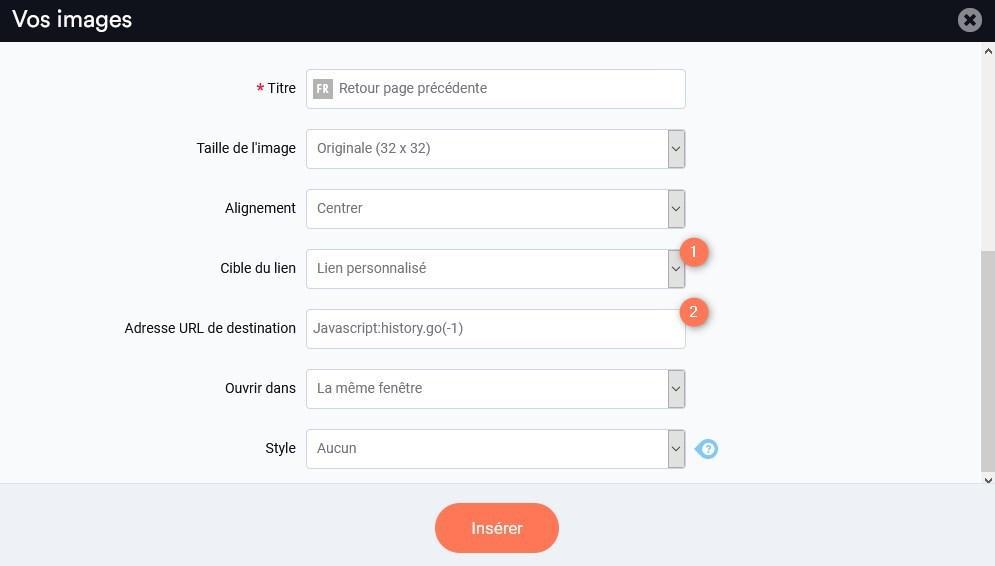
When inserting your image, choose a custom link for the image (1).
Then enter the value Javascript:history.go(-1) in the link address field (2) and save.
When a visitor clicks the image, they will go back to the page they viewed just before.
Good to know
With this type of link, it is possible to leave your site if the previous page was an external page.
In some cases it may be preferable to use pagination, which will automatically add links to browse your different pages. For example, you can create paginations very easily using the page creation tool.
To further improve navigation on your website and your search ranking, remember to check that the breadcrumb trail is enabled in Settings > Global settings > Plugins. The breadcrumb trail shows a path telling you where you are on the site and generates links to the parent pages, if there are any.