Adjust the settings
Sign in to Outlook with your usual address (example@outlook.com).
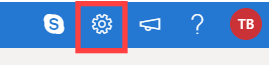
Click the Settings menu (the cog) at the top right of your inbox, then at the bottom of the page click the View all Outlook settings link.
In the next window, select Mail then Sync email.
In the Connected accounts section, click Other email accounts.
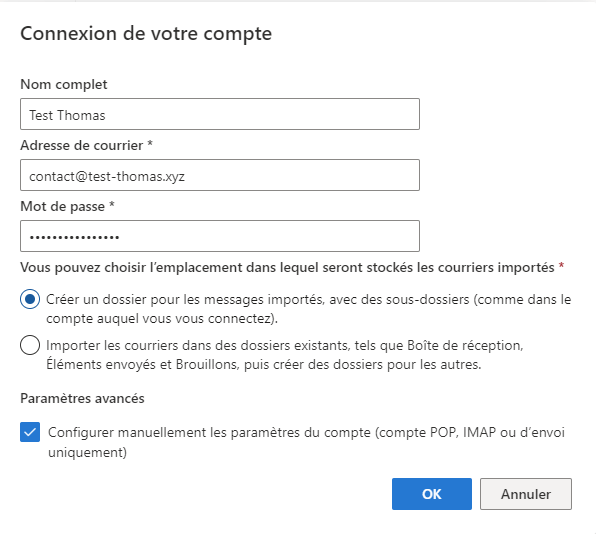
Enter the account name, then the email address to link to Outlook and its password. Finally, tick the box to Set up account manually (POP, IMAP or send-only account).
Set up the POP account
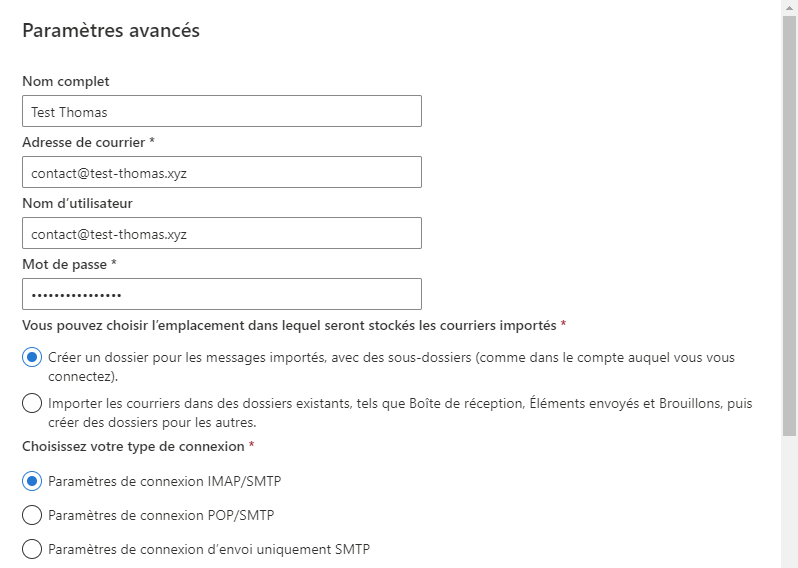
On the setup page for this new account, enter the email address to add and the password of this address.
The password can be found in the manager in Settings > Global settings > Domain names > Manage.
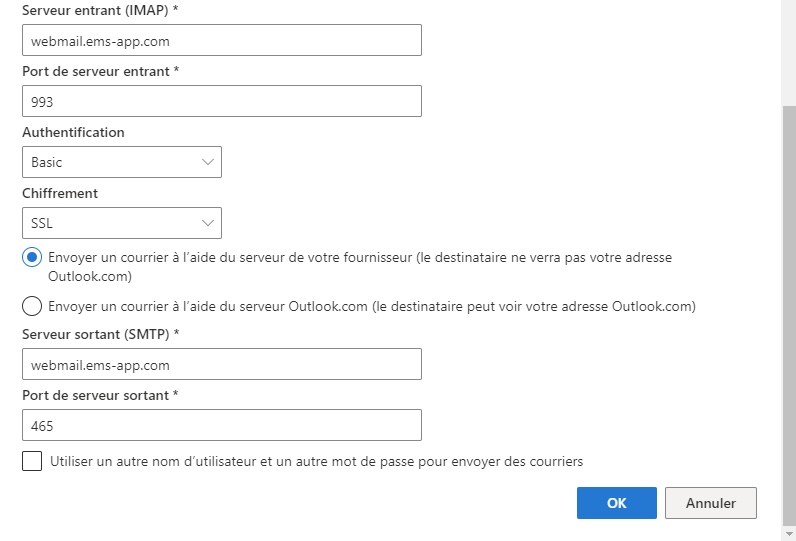
- Server address : this information is available in your manager in Settings > Global settings > Domain names > Manage, then in the Servers section) and enter the Port : 995 for a POP account or 993 for an IMAP account.
- The user name must be the email address. In the example opposite, the email address is contact@test-thomas.xyz, so the user name will also be contact@test-thomas.xyz.
- Choose either "Send email using the Outlook server": this solution uses the Outlook services to send your emails, or "Send mail using your provider's server" and use the server of the domain name with port 465.
To send messages from Outlook
To send a message with your domain, click New mail. Click the "From" field to choose which address to use to send the email.
You can send and receive a test email with an address on Outlook or on another email service.