Domain names and emails

How do you set up an email address on Android?
You need a domain name to create a personalised email address. If you own the site “my-business-site.com”, for example, you can create an address such as “contact@my-business-site.com” or “info@my-business-site.com”.
Depending on your Android smartphone or tablet model, you may have a dedicated email app built in. As they are all different, we suggest you learn how to set up the BlueMail app, available free on the Google Play Store and compatible with most Android smartphones and tablets.
Before you start
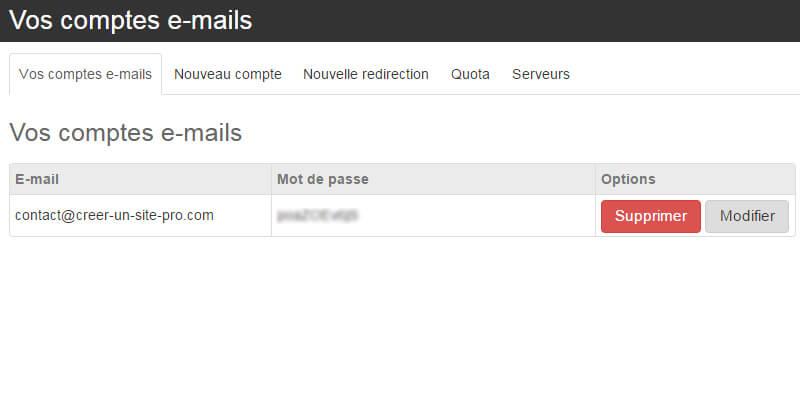
Before you start setting up BlueMail on your smartphone, go to Settings > Global settings > Domain names in your manager to find your email addresses and passwords. If you do not have an email address yet, see the tutorial Create an email address linked to your domain.
In your manager, in Settings > Global settings > Domain names, click Manage next to the domain name on which you added emails. If you have only one domain name, several Manage buttons may appear. They are all linked to the same email account.
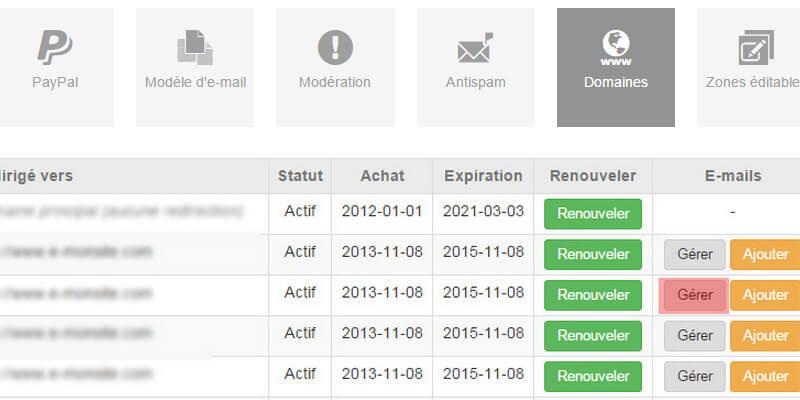
A pop-up window opens.
It shows the list of email addresses created on the domain name, along with their passwords.
First steps in BlueMail
By clicking the link given at the start of the tutorial, you can start downloading the app to your Android device. You can also search for “BlueMail ” in the Google Play Store to open the download page of the app.
Add an account
Once the app is installed and launched, a window appears with two choices: Add a Google account and Choose an email provider. Click the second one, then Other Mail.
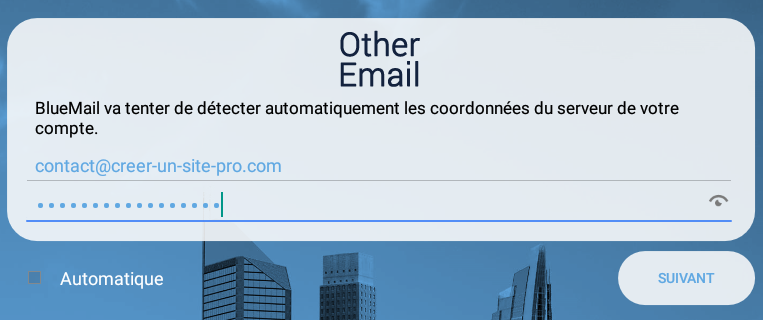
When you click Other Mail, the app offers to detect the server details of your account automatically with the Automatic box ticked below the password field. Untick this box: the app must not set itself up. Enter your email address and the password associated with the email, then tap Next.
Setting up your email address
Once your address and password are entered, the app offers three account types. You can choose between IMAP and POP3.
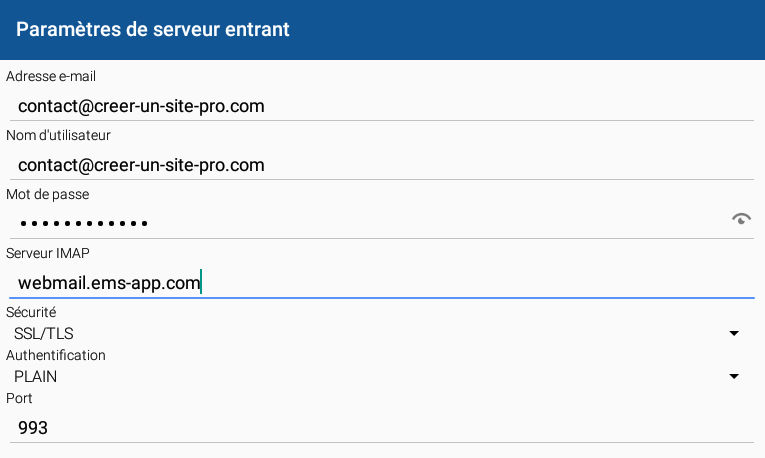
After you tap one of the two, the incoming server setup window opens.
- In the email address, user name and password fields, everything is already filled in. Leave these fields as they are.
- In the IMAP or POP3 server field, depending on your choice, enter the matching value shown in Settings > Global settings > Domain names by clicking the Manage button and looking in the Servers section.
- In the Security field, choose SSL/TLS
- In the Authentication field, keep PLAIN
- The Port field is also set automatically: leave 993 for IMAP or 995 for POP3
When you tap Next, it is the turn of the outgoing server setup window to appear.
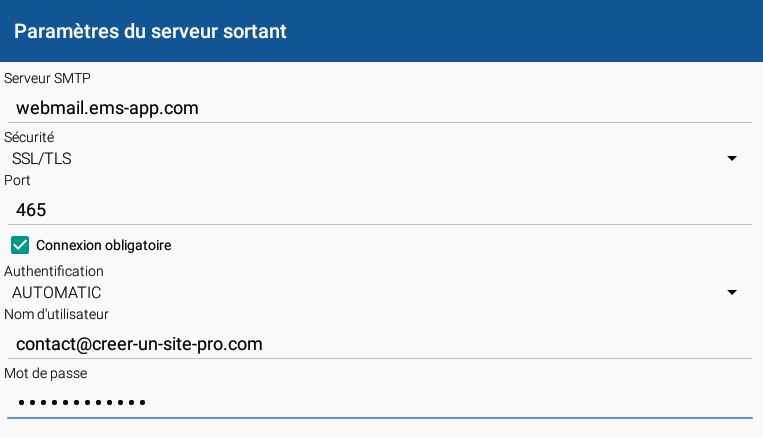
- In the SMTP server field, enter the server shown in Settings > Global settings > Domain names by clicking the Manage button and looking in the Servers section
- In the Security field, choose SSL/TLS
- For all the other fields, keep the existing setup
Tap Next again: one last window appears. It lets you set your Name, which is displayed when you send an email, and the Description shown in your app so you can recognise the account. That's it: your account is set up in BlueMail !