The information needed to set up an account is in your manager
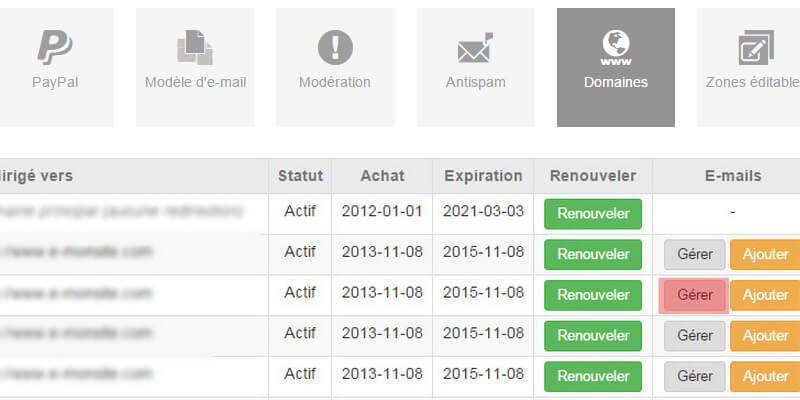
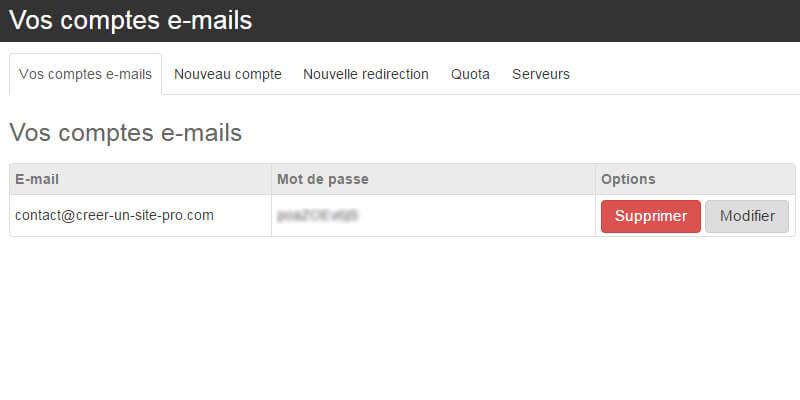
You can create these personalised email accounts from your manager in Settings > Global settings > Domain names (1). This is also where we will get the information needed to set up Windows Live Mail. So note down your full email address and your password.
In the "Servers" tab (2), you will find all the information to copy and paste into your email program.
Open Windows Mail and add an account
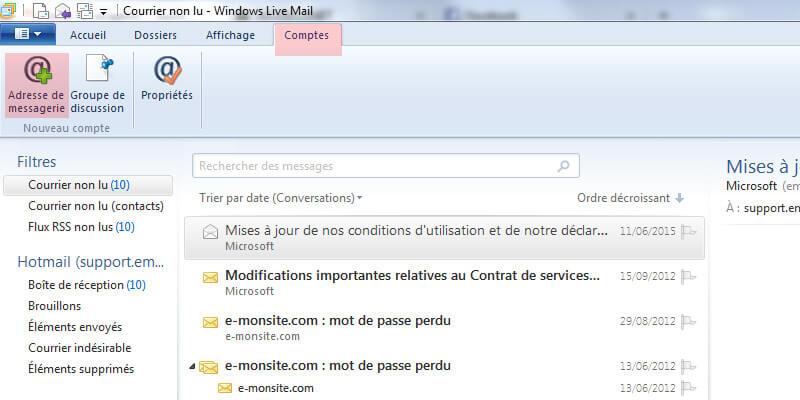
Open Windows Live Mail from the Start menu. If you open it for the very first time, the account setup wizard opens automatically. Otherwise, go to the Accounts > Email menu. Click "Add a new account".
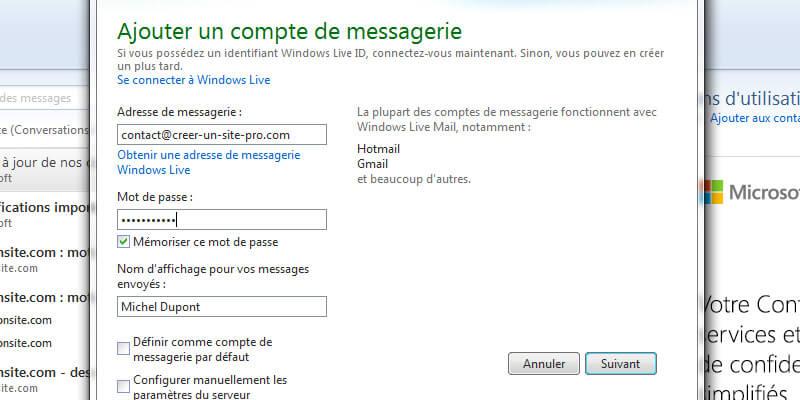
Enter your full email address and your name as you want it to appear on your emails, then click Next.
Set up the server settings: incoming and outgoing
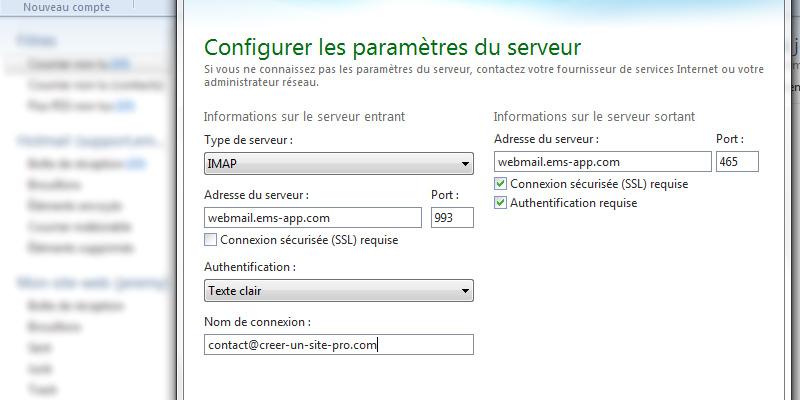
You now need to tell Live Mail the specific settings of the servers: the one used to send mail (SMTP server), and the one that will receive your mail (IMAP).
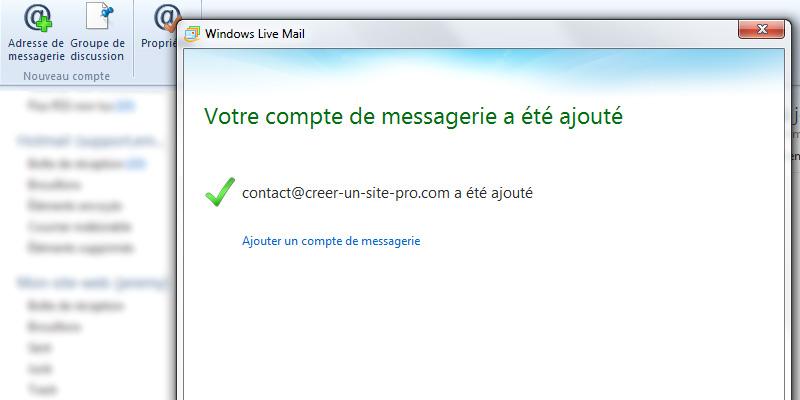
Copy and paste the information from your manager (server address = webmail.ems-app.com, port 993 for IMAP and port 465 for SMTP). Tick the "Secure SSL connection required" box. Save. That's it: your email account is created and you can start to send and receive emails with Windows Live Mail. If there are already emails on the server, the program will download them.
The information about the server to use is shown in Settings > Global settings > Domain names by clicking the Manage button and going to the Servers tab.
Good to know: other ways to check your emails
If one day you receive an email with the subject “user is over quota”, don't panic. This message simply tells you that you have exceeded the storage quota allocated to this email account. You need to sign in to the mail server to delete some emails.
With emyspot, we provide a webmail whose URL is shown in Settings > Global settings > Domain names by clicking the Manage button and going to the Servers tab. Simply enter your email address and your password to sign in. It is handy if you need to check your messages when you are on the move!