What can you add to a drop-down menu?
In a drop-down menu, you can display:
- the list of categories and subcategories of an add-on (for example, the list of page categories or blog categories)
- the list of categories and items stored in a category (for example, the list of pages in a category)
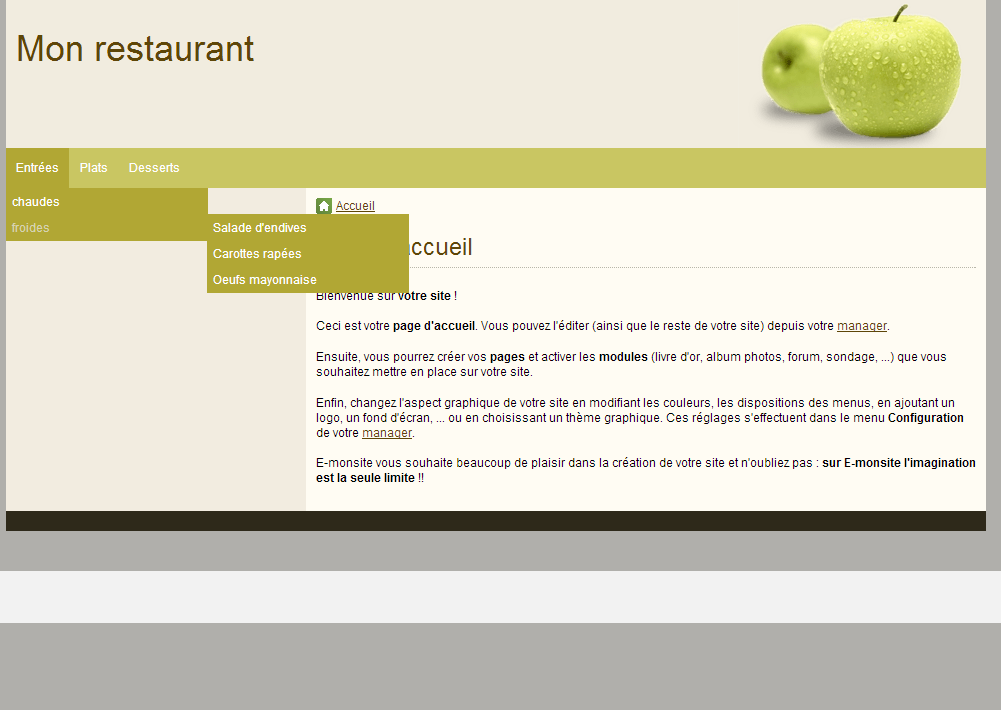
The drop-down menu can work on 2 levels (pages appear when you hover over a category title) and up to 3 levels (for example, the pages of a subcategory). Let's see how to apply this option with practical examples.
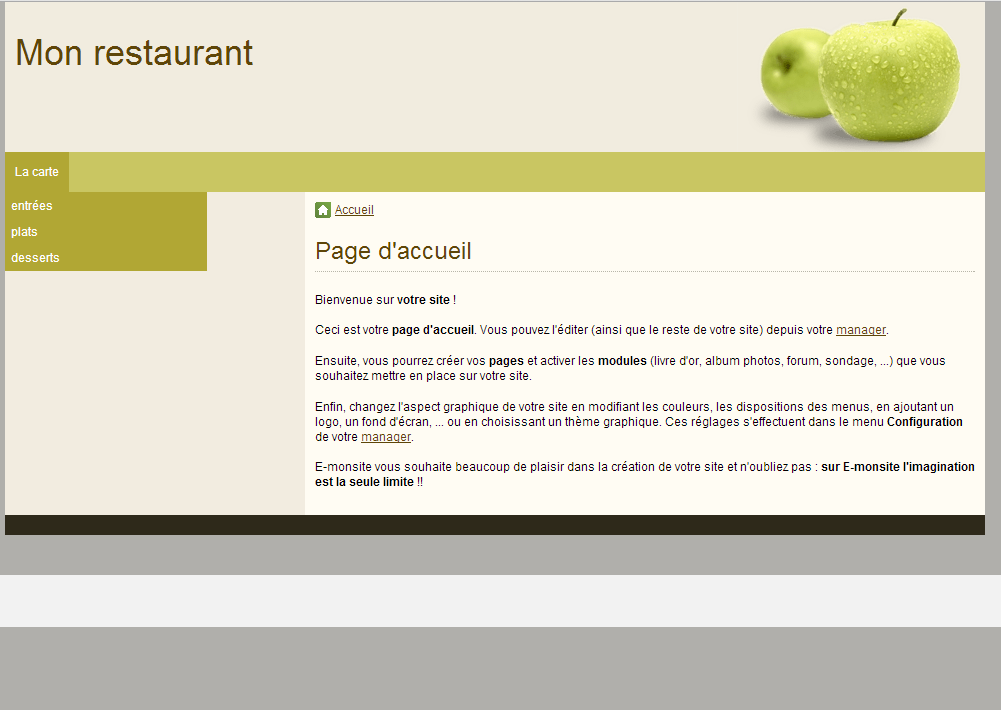
For example, you can show the list of pages in a category, or the list of categories of an add-on.
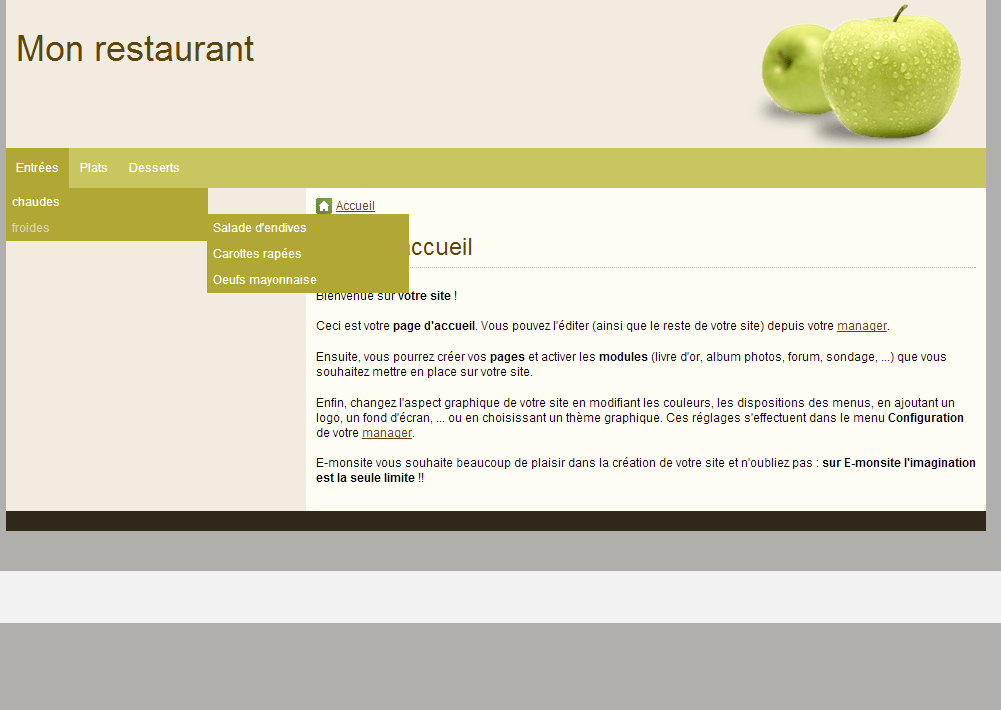
For example, you can show the list of pages in a subcategory, or the list of pages of the categories of an add-on.
Show the list of categories of an add-on
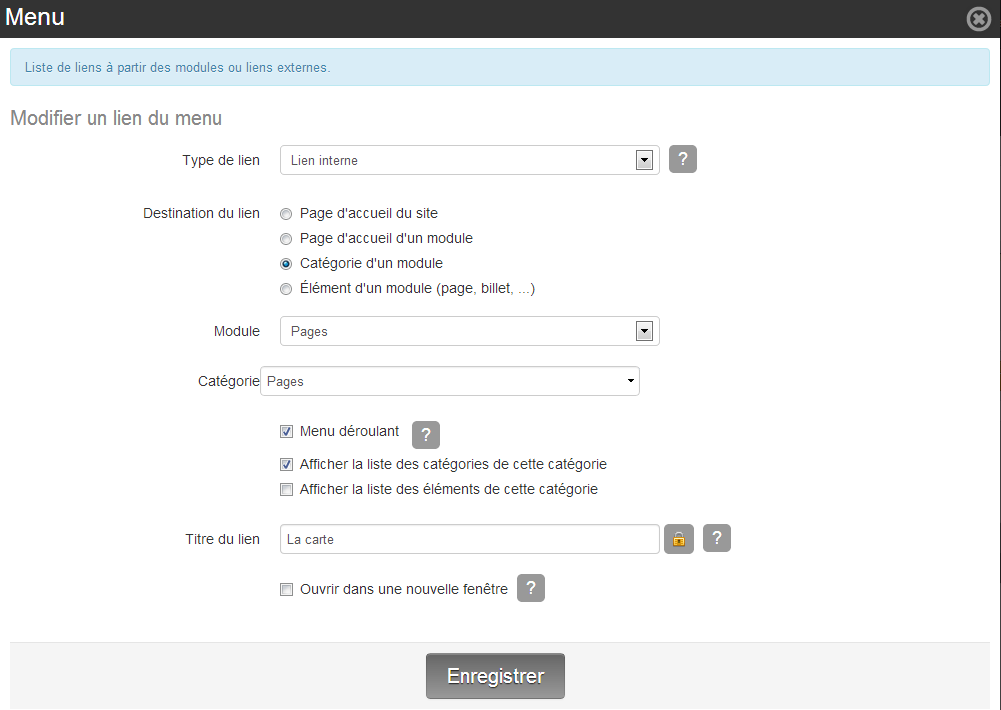
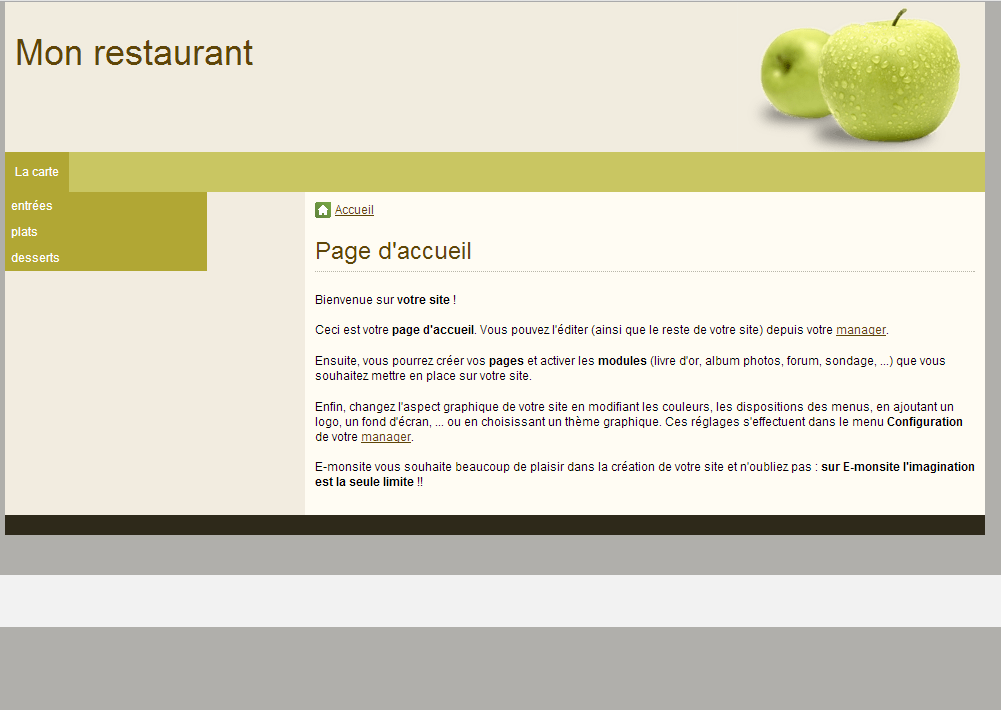
Example: a restaurant presents its menu in several page categories (starters, main courses, desserts). We will add the menu to the navigation and make the categories drop down when a visitor hovers over the title "The menu".
- Go to Settings > Menus and edit the top horizontal menu.
- Click New link.
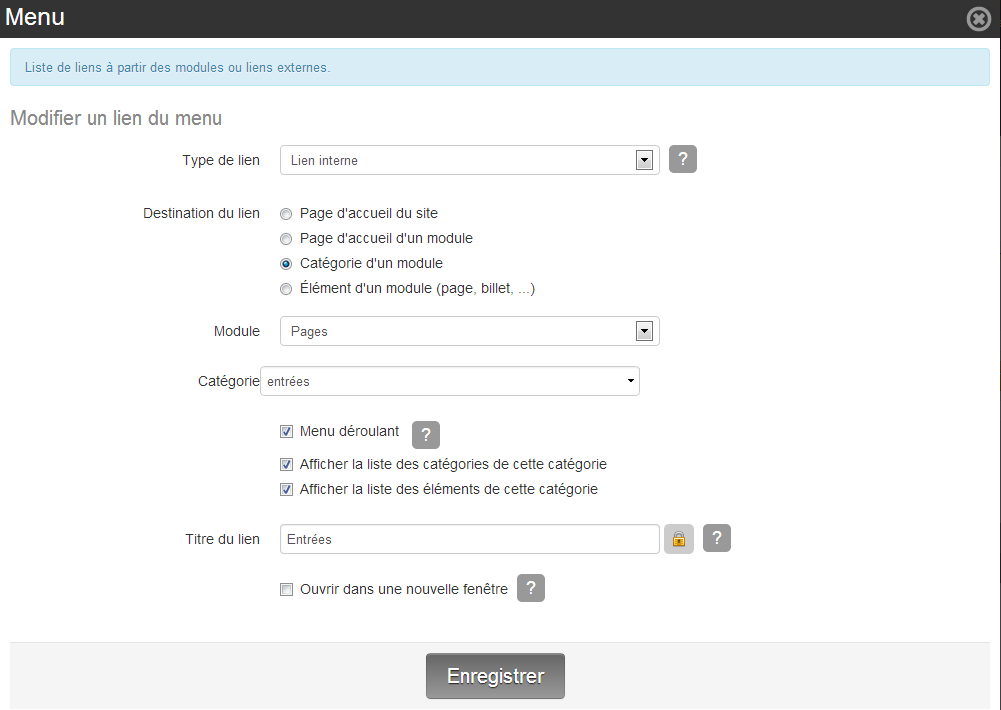
- Choose an internal link to an add-on category.
- Select the add-on (Pages in our example).
- Select the category (Pages in our example, since we want to show all the categories stored at the root of the Pages add-on).
- Tick the drop-down menu option.
- Below it, choose what should drop down (in our example, we ticked the option to show the list of categories of this category, to present all the page categories: Starters, Main courses, Desserts).
- You can change the link title. Instead of Pages, we will call it The menu. To change a link title, click the small padlock to unlock the field.
Note: you can do this for every add-on that lets you create categories. For example, you can show the list of categories of your online store, your blog or your photo album when a visitor hovers over the title.
Show the list of items in a category
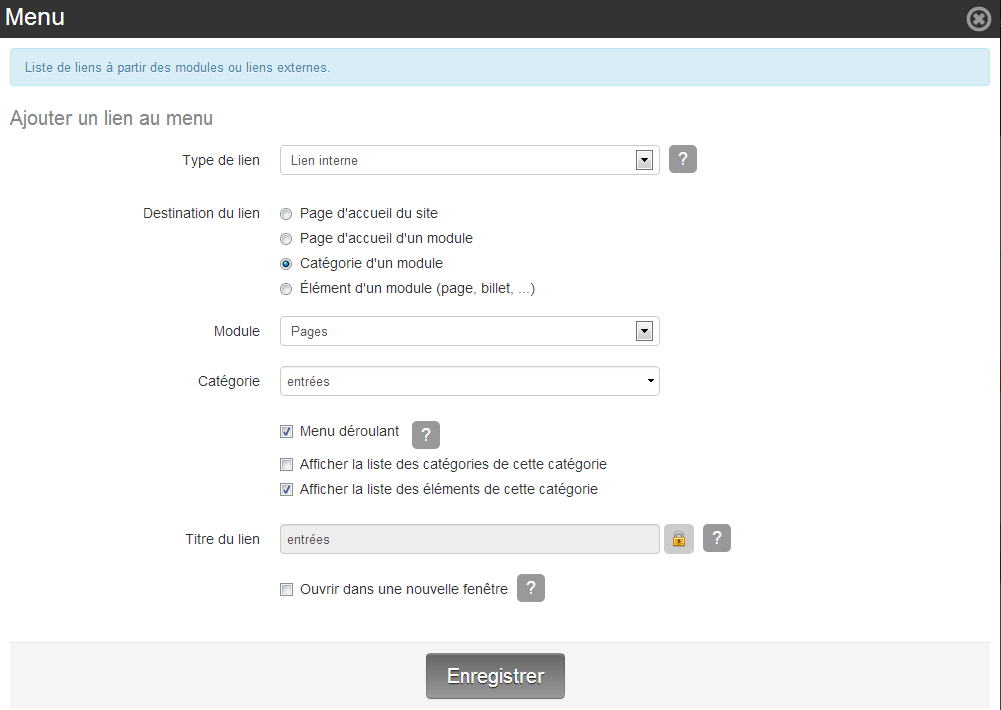
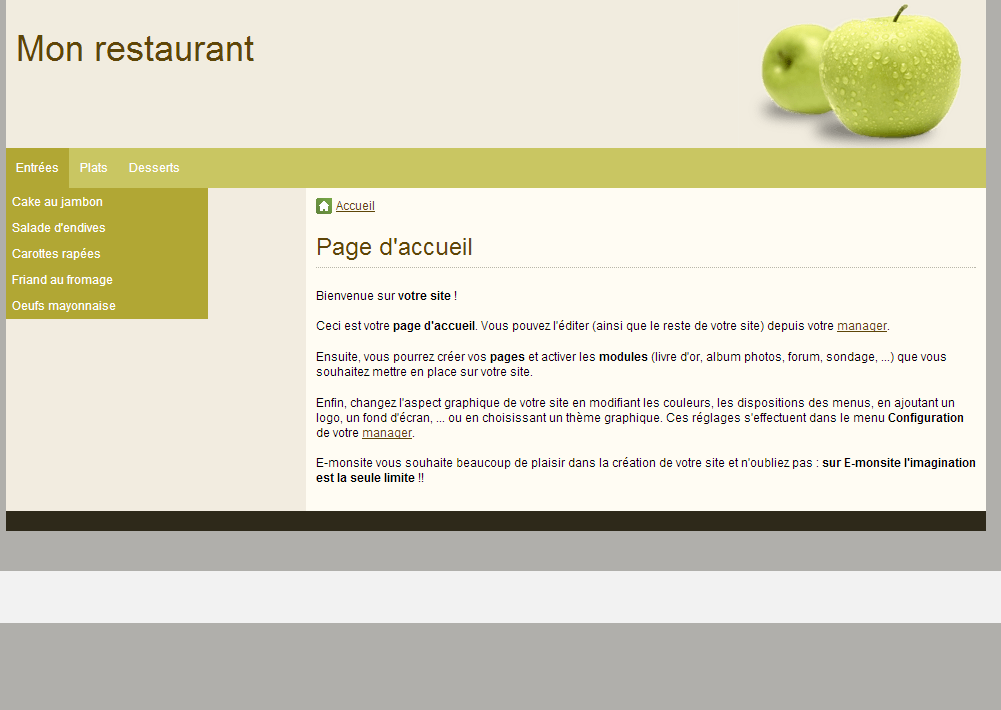
Example: a restaurant presents its menu and stores it in several page categories (starters, main courses, desserts). We will add to the menu the list of all the starters, main courses and desserts. So we will add 3 links to the menu (starters, main courses and desserts), each link showing its content when hovered.
- Go to Settings > Menus and edit the top horizontal menu.
- Click New link.
- Choose an internal link to an add-on category.
- Select the add-on (Pages in our example).
- Select the category (Starters first. You will need to repeat the same steps for Main courses and Desserts).
- Tick the drop-down menu option.
- Below it, choose what should drop down (in our example, we ticked the option to show the list of items in this category, to present all the "starters" pages created in this category).
Note: you can do this with pages, but also with the items of other add-ons. For example, you could show the list of posts in a blog category, or the list of products in a store category, when a visitor hovers over a menu link.
Show the list of items in a subcategory
You can show categories and items when a visitor hovers over a link in the menu. To continue our example, imagine the restaurant offers hot starters and cold starters. Two subcategories have been created and the pages are stored in them. You can add a Starters link to the menu that shows the list of subcategories (hot and cold) on hover.
- Go to Settings > Menus and edit the top horizontal menu.
- Click New link.
- Choose an internal link to an add-on category.
- Select the add-on (Pages in our example).
- Select the category (Starters first. You will need to repeat the same steps for Main courses and Desserts).
- Tick the drop-down menu option.
- Below it, choose what should drop down (in our example, we ticked both the option to show the list of items in this category and the option to show the list of categories of this category).
Note: you can do this with pages, but also with the categories and items of other add-ons. For example, you could show the list of posts in a blog subcategory, or the list of products in a store subcategory, when a visitor hovers over a menu link.