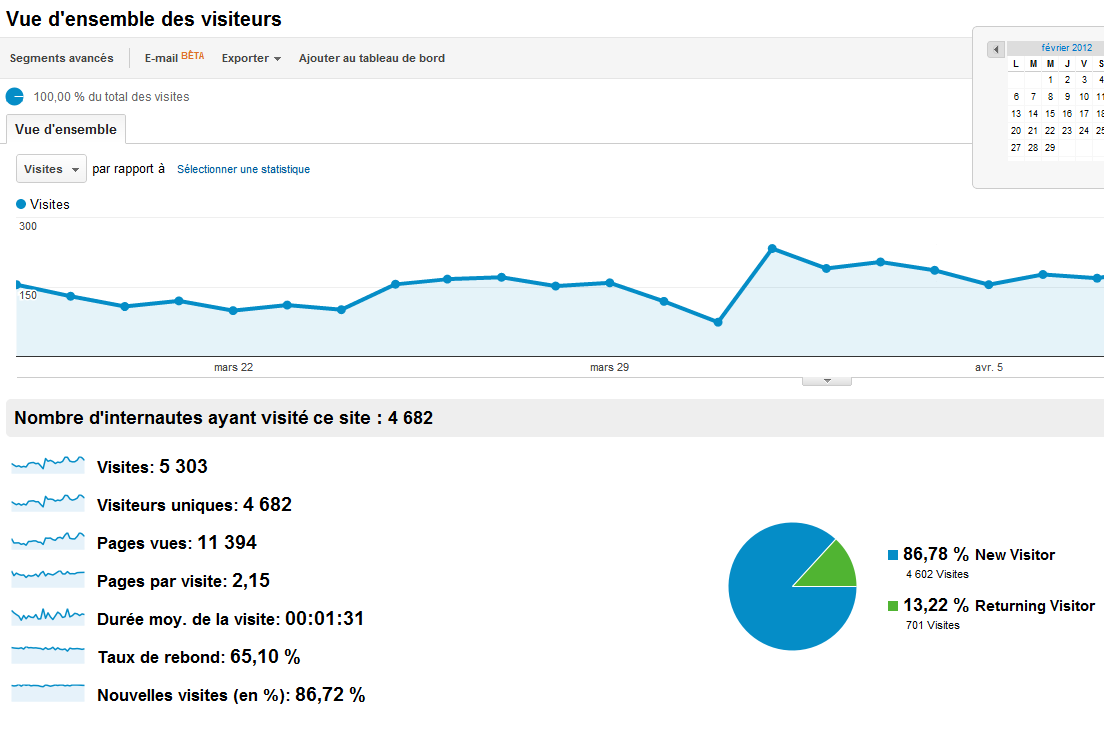
Find out how to link your Google Analytics account to emyspot
The video explains how to create your Google Analytics account and link it in your manager. Use Google Analytics to analyse the statistics of your website and improve its performance.
With Analytics, you will get information on:
- Visitors (where they come from, the browser used, the share of new visitors, etc.)
- The content of your site (the most viewed pages, entry and exit pages, the bounce rate, etc.)
- Traffic (how visitors arrived, from which site, by typing which word, etc.).
You could also go much further by linking your Analytics account to your AdWords account or by tracking your sales if you have an e-commerce site.
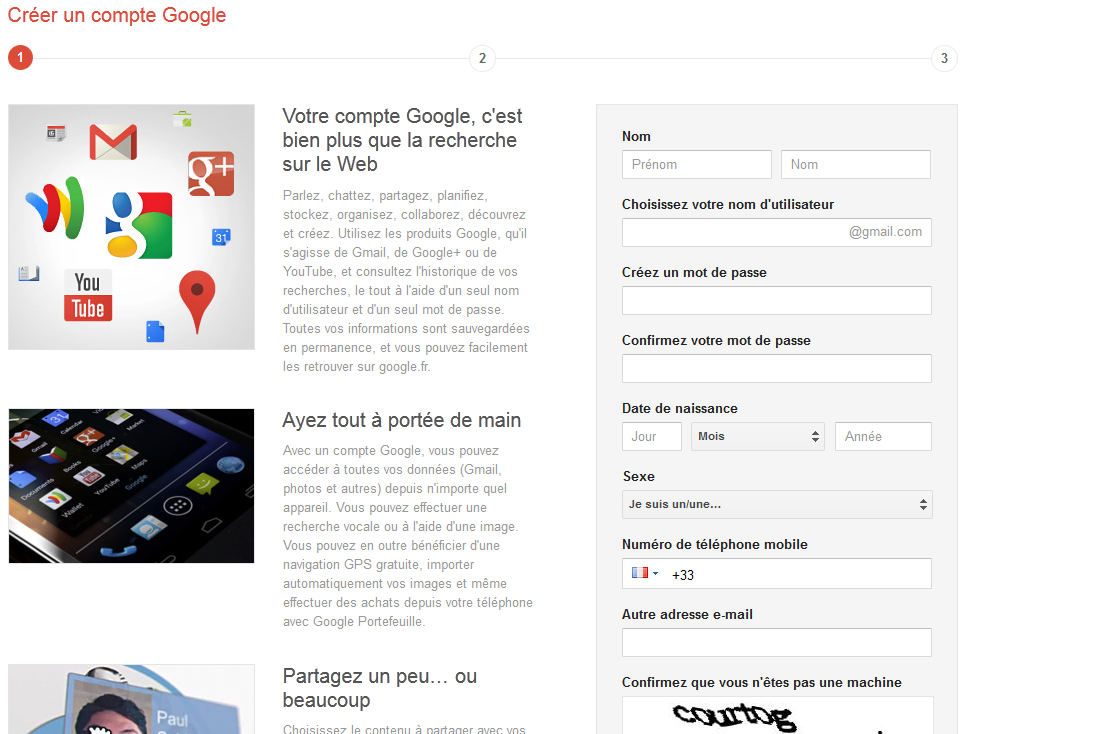
Create a Google account
Analytics is a Google tool. To use it, you therefore need a Google account. Sign in to your account. If you do not have one, you have to create one. This account gives you access to all Google services, such as:
- managing your videos on YouTube
- using webmaster tools
- storing your documents online
- making your site profitable with Google AdSense
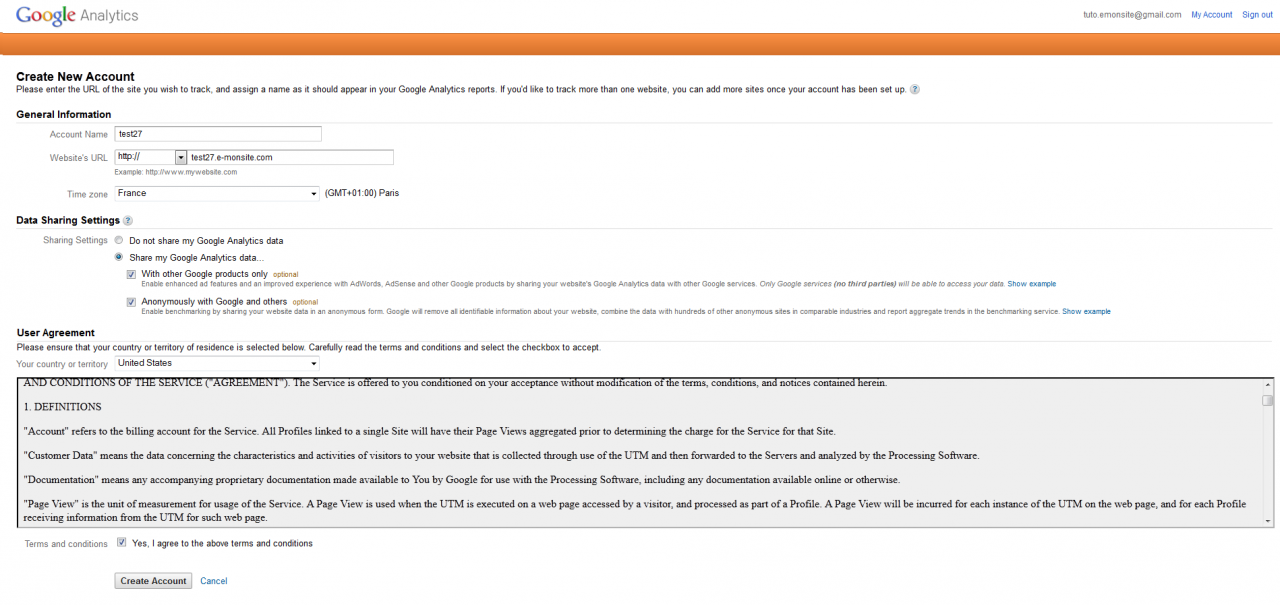
Create an Analytics account
Sign in to your Google account, then go to:
Give your account a name (the title of your site, for example), then enter the address of your site. Click Create account
You can now change the language by clicking Settings at the very top.
3. Add the tracking code in your manager
The tracking code looks like this: UA-xxxxxxxx-x. It is shown in several places in your Google Analytics account.
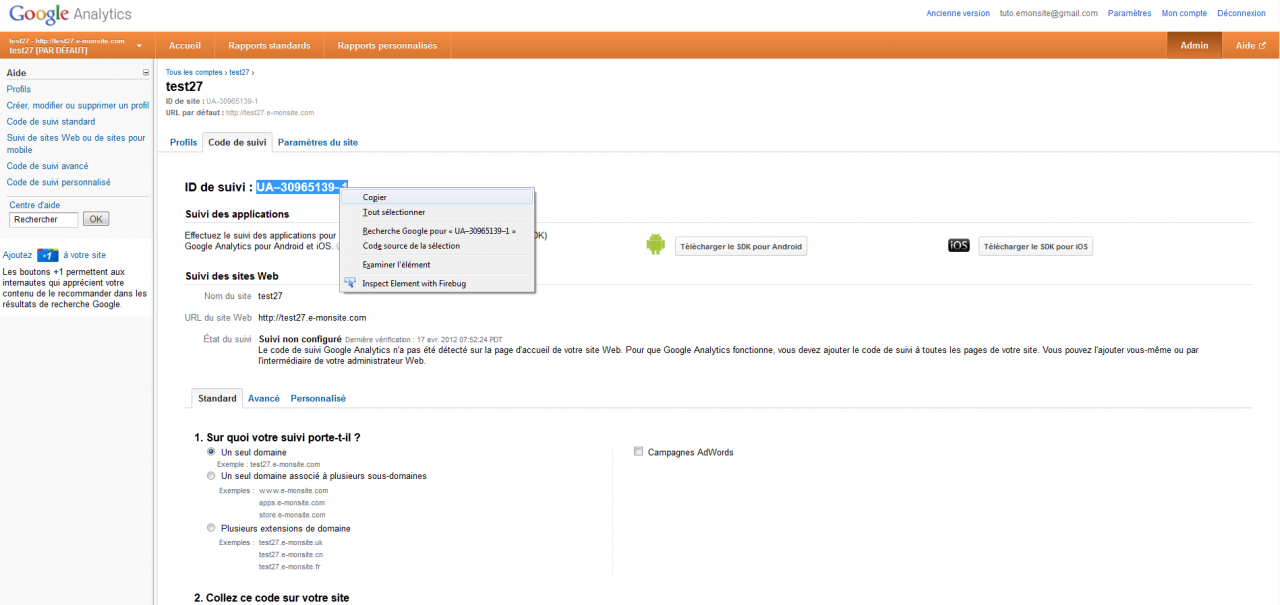
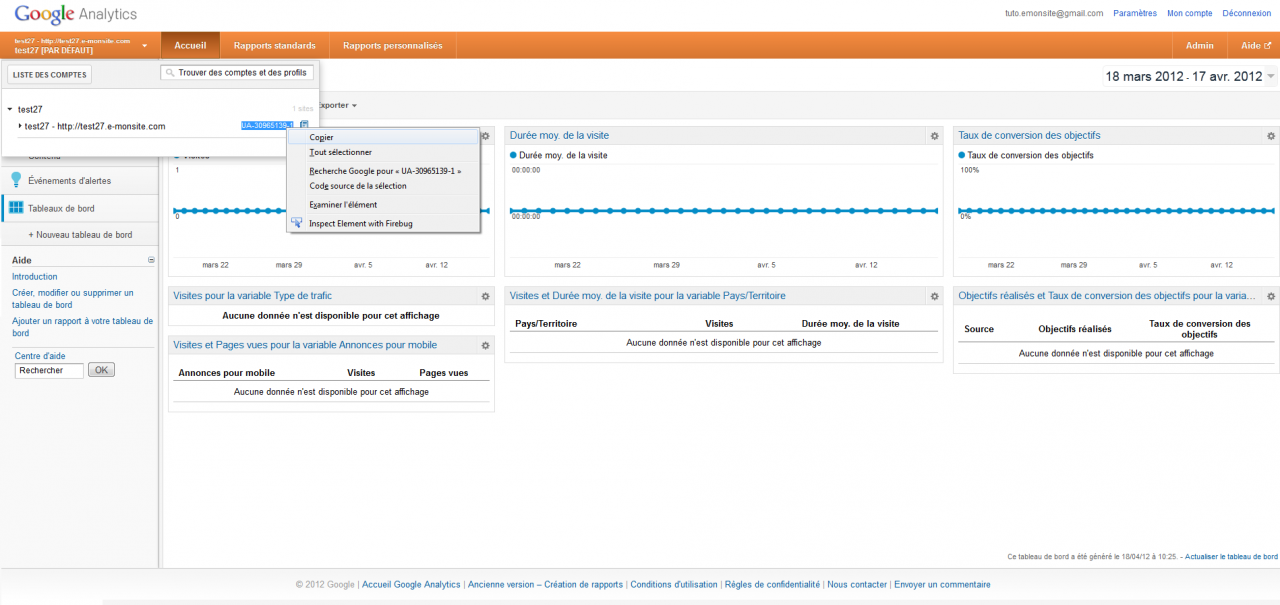
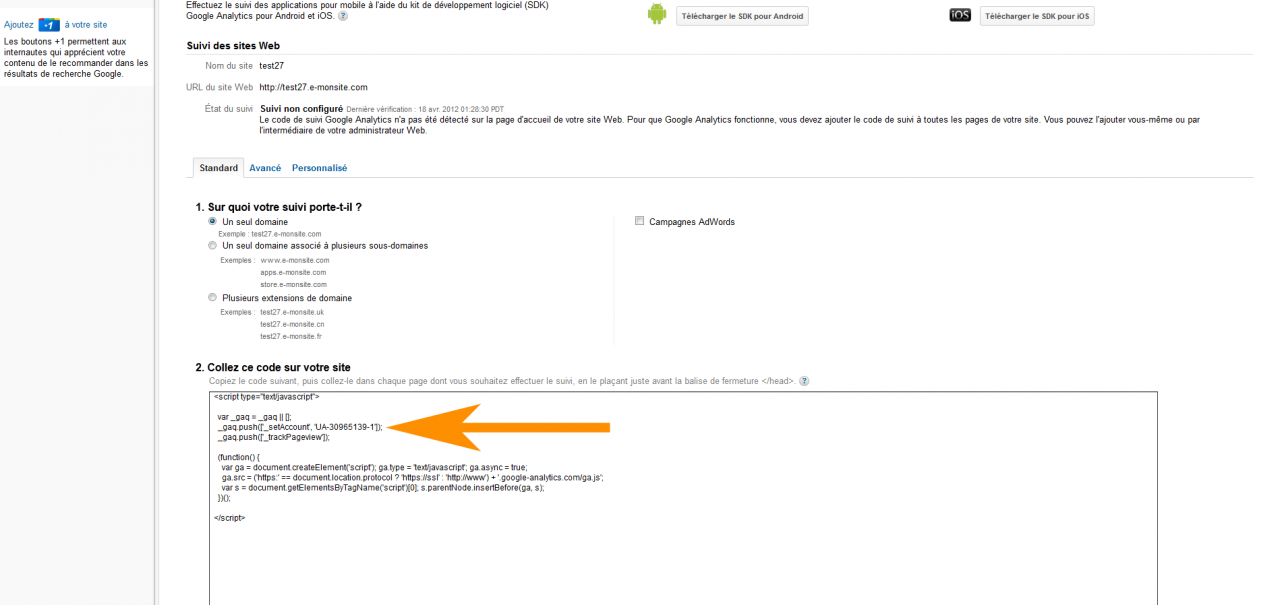
Select the code, right-click and copy (be careful: do not copy the whole script, only the code of the form UA-xxxxxx-x)
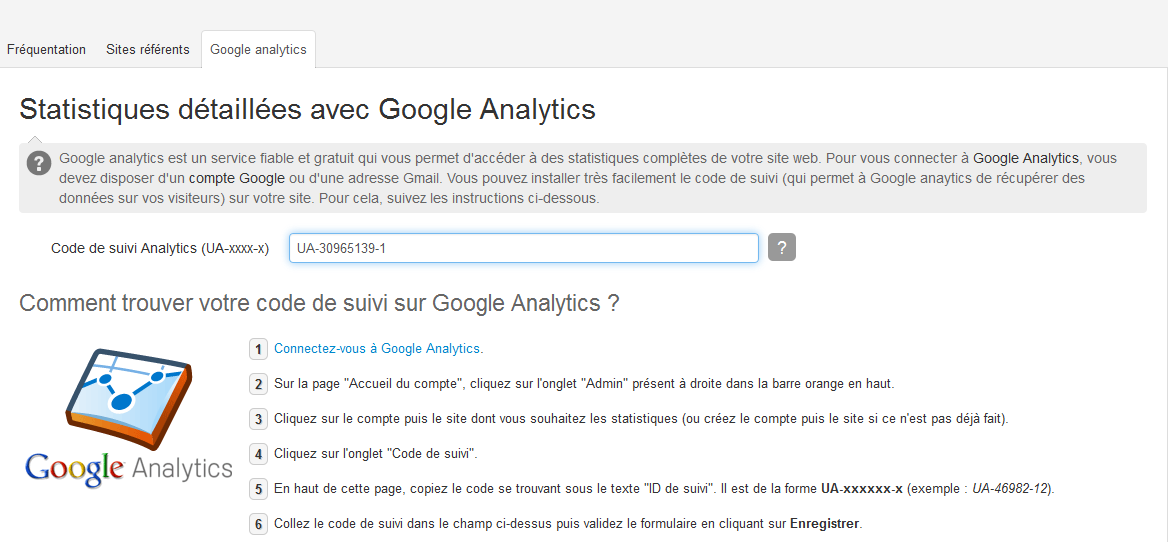
To link your Analytics account to your site, go to the Analytics section of the statistics settings of your manager and paste the code as in the following illustration.
View the statistics
Your account is now linked to your site. You now have to wait a little before you can see the first statistics.
In general, allow some time before you can view the first reports.