Before you start: find the email account details
In your manager, in "Settings > Global settings > Domain names", click "Manage" next to the domain name on which you created an address.
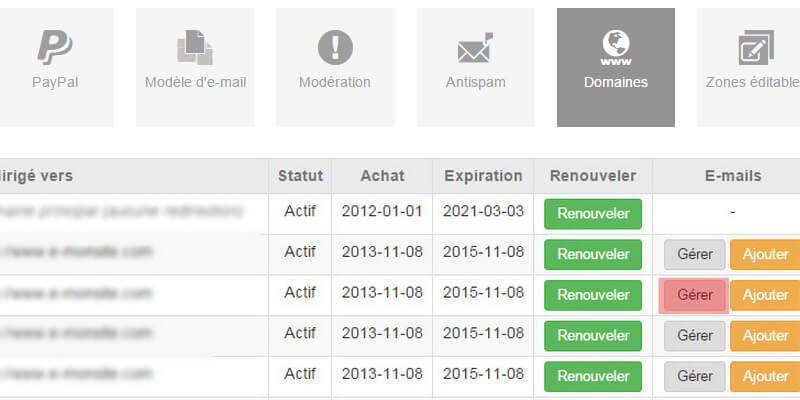
A pop-up window opens.
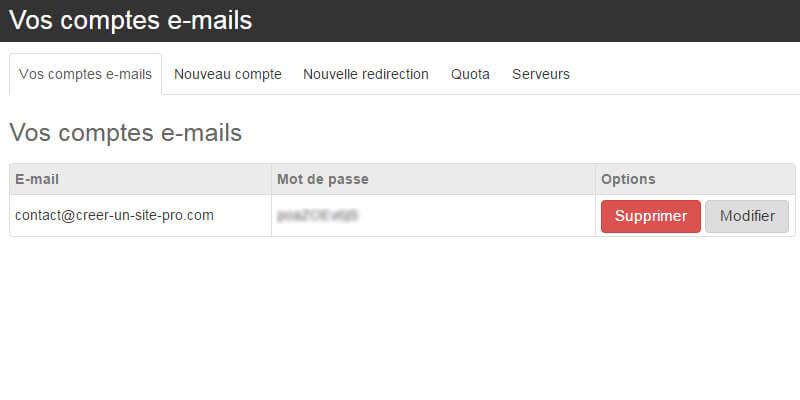
It shows the list of email addresses created on the domain name, along with their passwords.
Add a new account
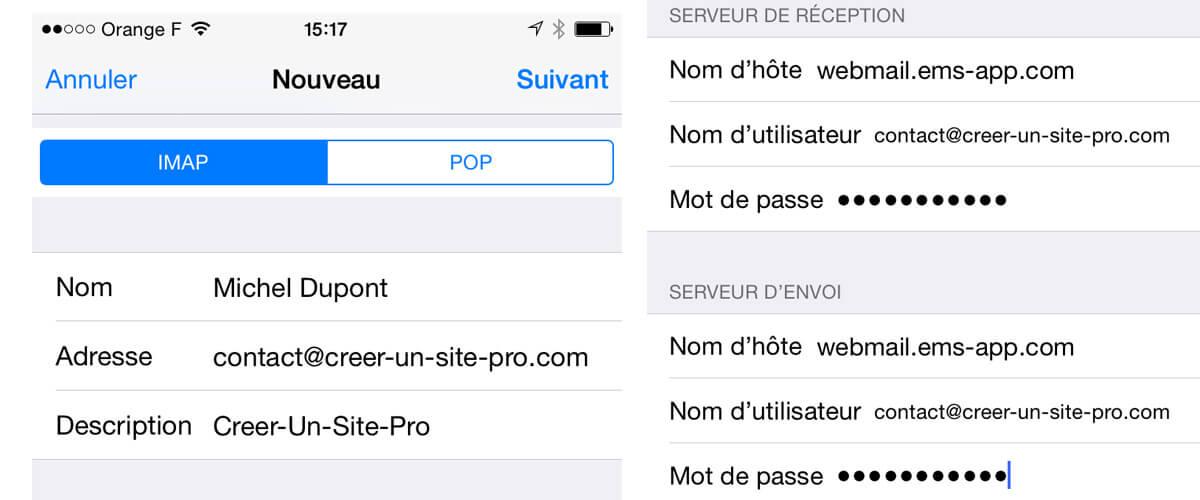
To add an email account on your iPhone, go to Settings > Mail > Accounts on your mobile device, select Add Account > Other and choose Add Mail Account. Enter your name, the address of the email account and the password (see the screenshot above)
When you have finished, tap "Next". You need to give Mail the specific settings of the servers: the one used to send mail (outgoing server) and the one from which you will receive your mail (incoming server).
Where do you find the outgoing and incoming server details?
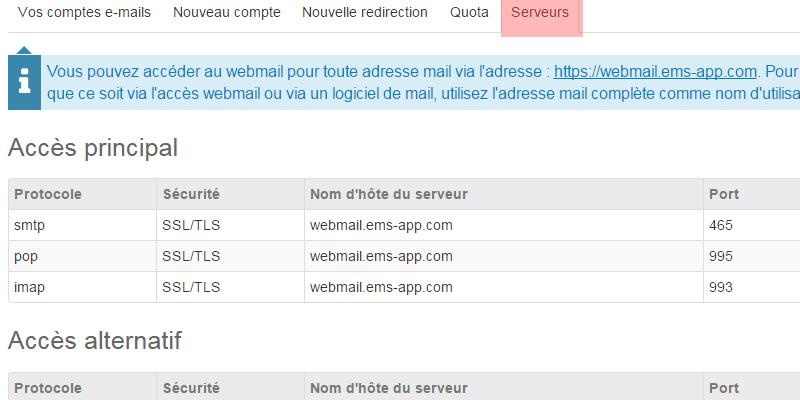
All this information is in your manager!
To find the host name of the server, go to Settings > Global settings > Domain names then click the "Servers" tab as in the example opposite.
For the user name and password, enter your email address again, along with its password.
All done. Ready to receive your emails on your iPhone?
Messages can start downloading if there is no error in the setup. Note that if you do not have your phone to hand and want to check your emails, you can use the emyspot webmail, whose URL is shown in the Servers section of your domain management in the manager, and enter your email address and password to access your emails.
We invite you to read this tutorial to find out about all the other ways to check your emails.