Open the settings in Gmail
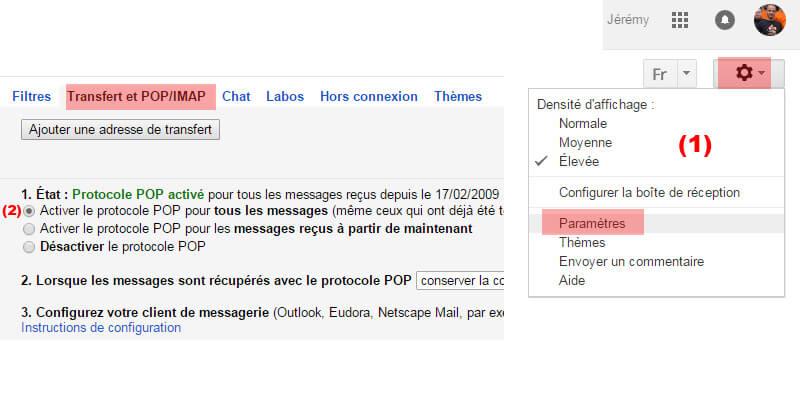
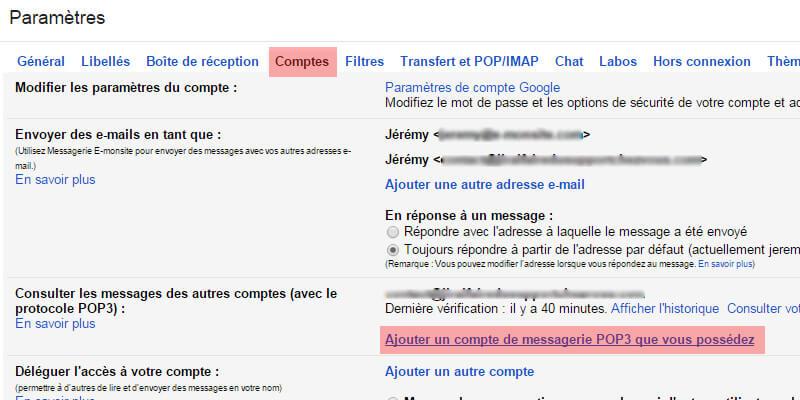
Sign in to Gmail and go to Settings > Forwarding and POP/IMAP. As in the illustrated example, tick Enable POP. Don't forget to save. Then go to Settings > Accounts and click Add a mail account that you own.
Add your POP account
Enter your email address (the POP account you want to set up), then go to the next step. Fill in the following correctly:
- the user name: this is not your surname or first name, you must enter the address of your email account again. Enter the full email address in this field.
- the password: if you can no longer remember it, you can find it in your manager in Settings > Global settings > Domain names. In the Emails column, click Manage (see the screenshot).
- the POP server address: check that the port is "995". The POP server address to enter is the one shown in your manager, in Settings > Global settings > Domain names by clicking "Manage" and going to the "Servers" section.
- Don't forget to tick the SSL box: "Always use a secure connection (SSL) when retrieving mail". Otherwise it will not work.
You will find all this information (password, email, server) in your manager, in Settings > Global settings > Domain names (see the screenshot below)
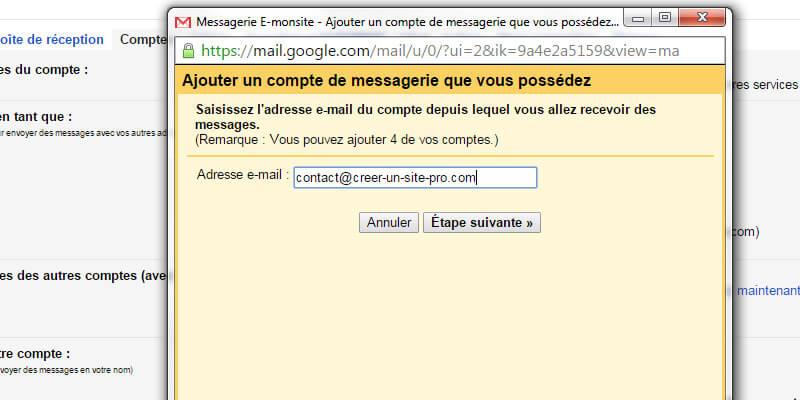
Enter your email address
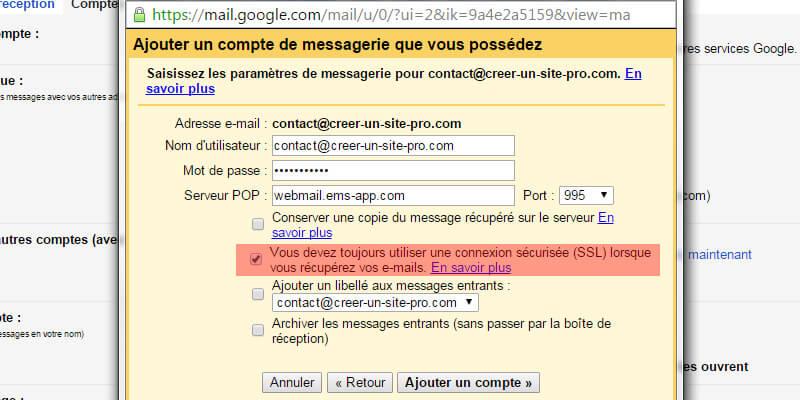
Don't forget to tick the "SSL" box
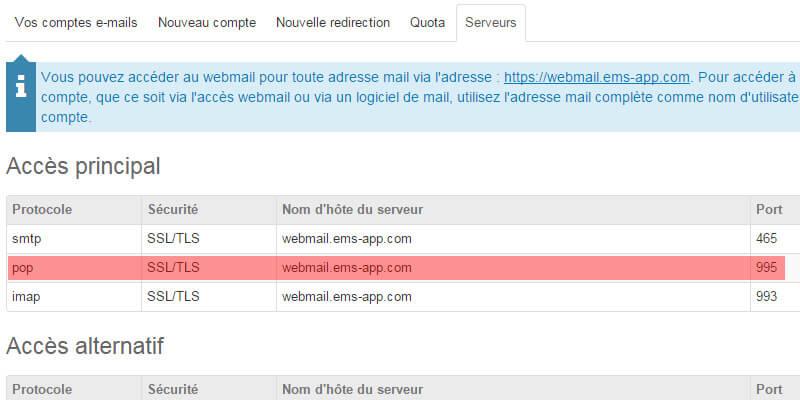
All the information in your manager
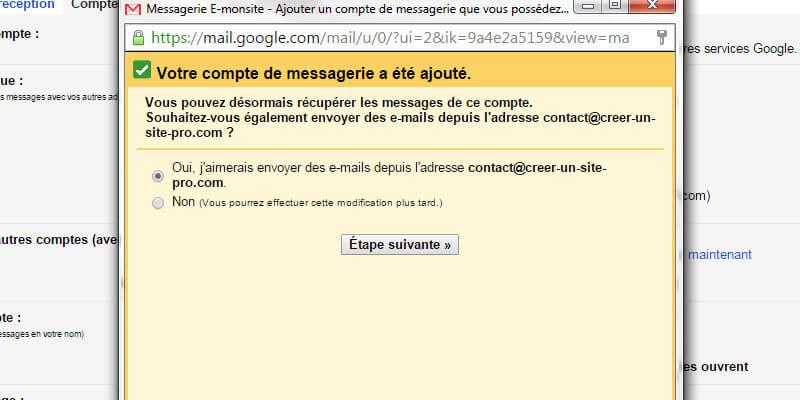
You can now receive emails
To send messages from Gmail
If you want to send messages with this email address through your Gmail account, you must use your SMTP server (the information is shown in the screenshot above)
The SMTP server is the one shown in the manager in the Servers section of the domain, and the password is the one for your email address. Remember to enter the right port, which is "465". Tick the SSL connection for sending emails.
Once that is done, Google just asks you to check that you really own this address, by copying and pasting a code that is sent to the email address. Sign in to the webmail of your domain, shown in the Servers section of your domain management in your account, to open this email, copy and paste the code, then confirm.
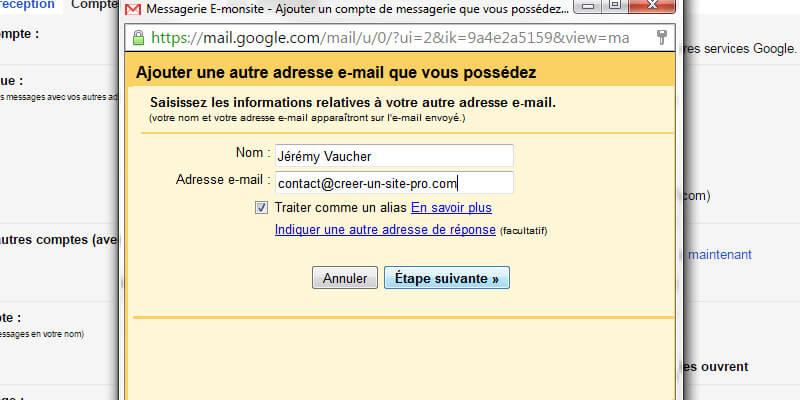
Your name and sender email address
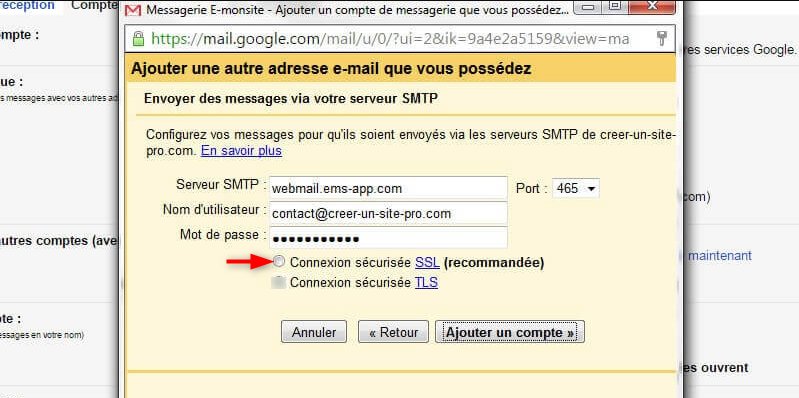
Enter the server settings
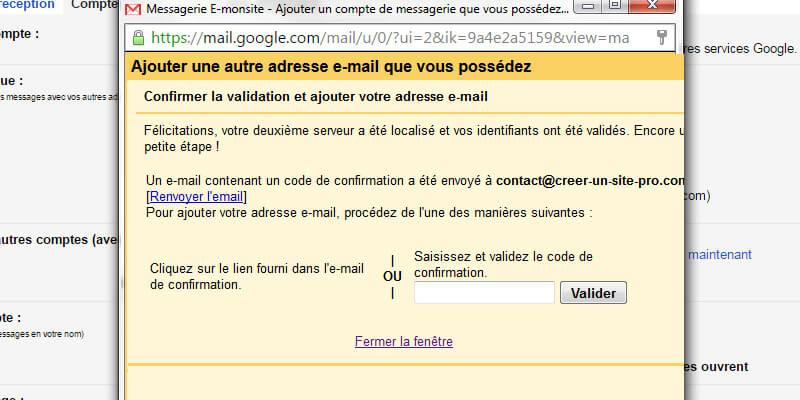
The verification code is sent by email
All done!
You can now send and receive messages from your Gmail account with the email address created on your domain name. Gmail limits you to 5 addresses, but there are other ways to use your email addresses.
For example, with emyspot you have a webmail to send and receive your messages. To open it, go directly to the address shown in your manager, in the Servers section of your domain name management.