Why redirect an email address?
As an association or a business, you may not want to display your personal address on your business card or on the contact tab of your website. Visitors will send their emails to the "professional" address you gave them, but you will receive those emails at your personal address.
Creating a redirect address lets you gather all your emails in the same account. You have two options for this!
How do you redirect an email address?
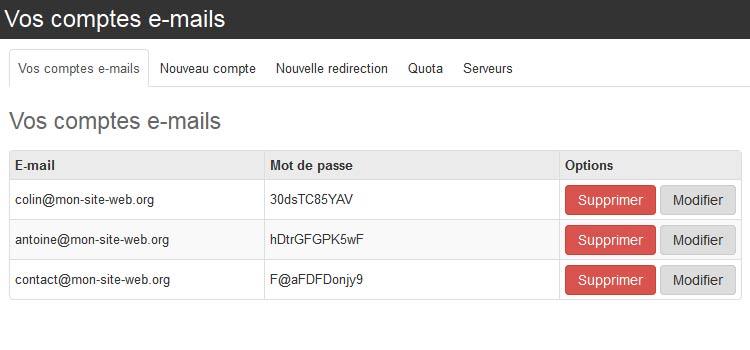
Do you already have an account?
In your manager, go to Settings > Global settings > Domain names. Delete the account, then use the add button to create a new redirection and fill in the fields. Be careful: if you delete your account, the emails you received or sent before this operation will be lost.
You do not have an account yet
In your manager, go to Settings > Global settings > Domain names. Next to the address whose emails you want to redirect, use the add button to create a new redirection and fill in the fields with the address of your domain (Email) and the address at which you want to receive your emails (redirect to). Save.
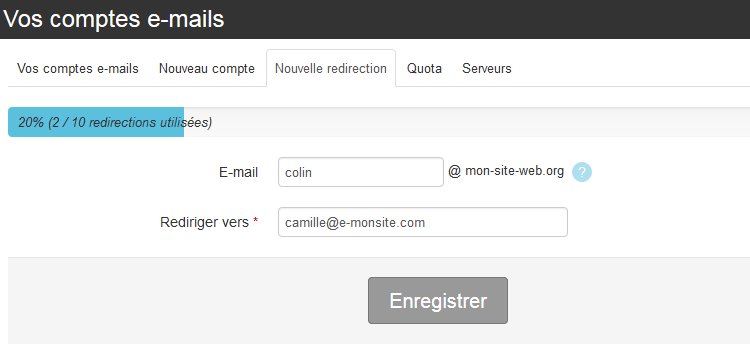
Create a redirection without losing emails
If you already have an account and do not want to lose the emails you have already received or sent, you can do it with the webmail! Let's see in 3 steps how to sign in to the webmail to set up an email redirection.
The address of the webmail is shown in Settings > Global settings > Domain names by clicking the Manage button, in the Servers section.
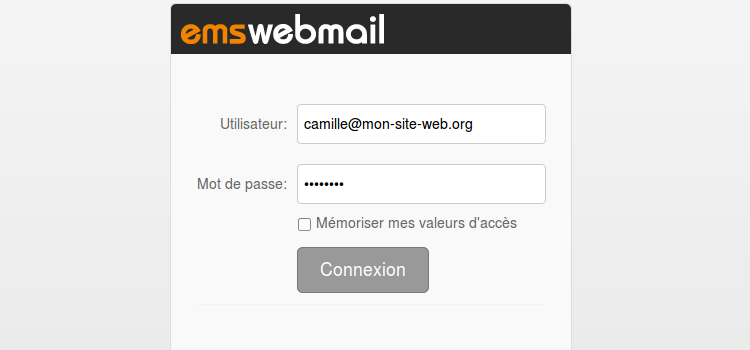
Sign in to the webmail
- Sign in to your email account (your password is shown in your manager in Settings > Global settings > Domain names)
Go to the preferences
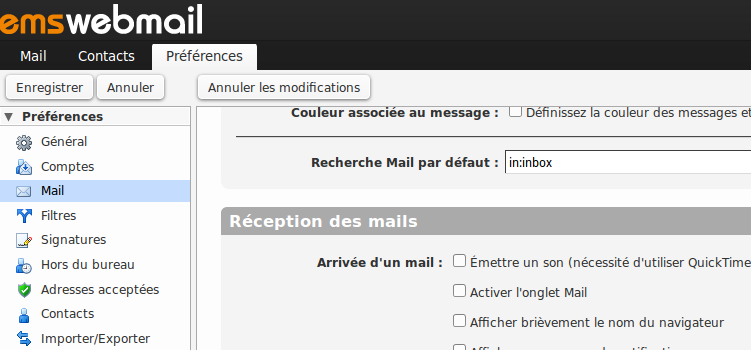
In the webmail, click Preferences, then Mail in the left-hand column of your webmail. Then scroll down the page to the Receiving mail section.
Set up the redirection
Fill in the "forward a copy to" field with the address at which you want to receive your emails. Choose whether or not to keep a copy of the emails on the server*.
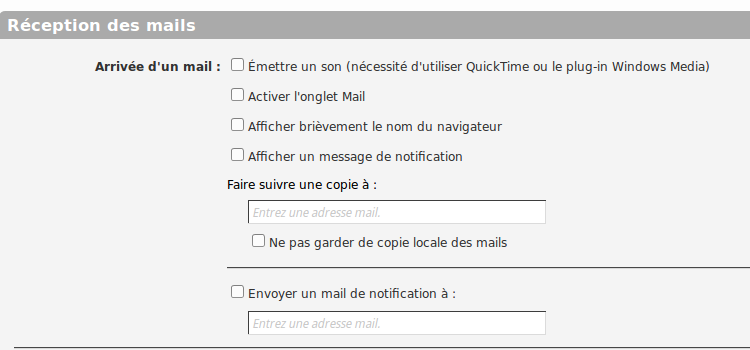
* You can keep copies of the emails you receive in the domain mailbox by leaving the "do not keep a local copy of emails" box unticked, but this will use up your storage space (which is shared by all your addresses).
Other tutorials you may find interesting
Create an email address
If you have a domain name, you can create email accounts from your manager.
Use an email address
Check your messages from a dedicated webmail or set up your email address in email software.