The email address of your emyspot user account
When you create a user account on emyspot, you provide an email address. This email address can be changed at any time from the personal information page of your account. By default, you receive all the notification emails linked to your site and your account at this address.
Please note that if you do not want to receive notification emails, you can untick each category or type of notification separately from the account settings and alerts page of your account. If you untick all the notification categories, the email address is then used only for any password recovery.
When will you receive emails at this address?
Emails linked to your user account
- To receive the replies of online support when you send a message from the manager through the online support link.
- After a request to recover your login details through the "Lost password?" link on the manager sign-in page. If you have forgotten your login details, we send them to the email address linked to your account.
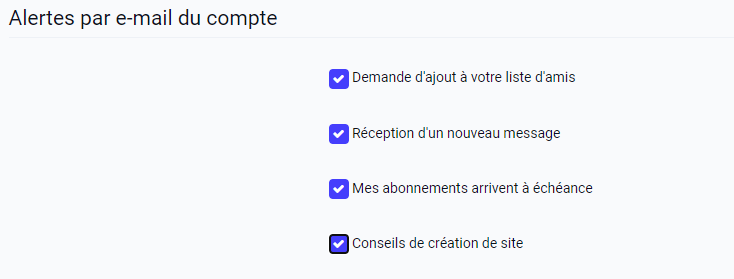
- If you have received a request to be added to the friends list of another webmaster, so that you can communicate privately through the manager messaging.
- After receiving a new message in your messaging, whether from a webmaster, from technical support or, depending on the settings of the contact forms, from a visitor to your site.
- To receive tips on making a site and marketing messages (sometimes with promotional codes for subscribing to a service to complete your site!).
- To receive reminders for your subscriptions that are about to expire. We send you reminders before your services expire, and on the day they expire, to spare you an unpleasant situation (a site that, without a domain name, can no longer be reached, for example).
Emails linked to your site
- Depending on the site settings, to receive for example a new order notification from your store (see the settings for store notifications) or a new booking.
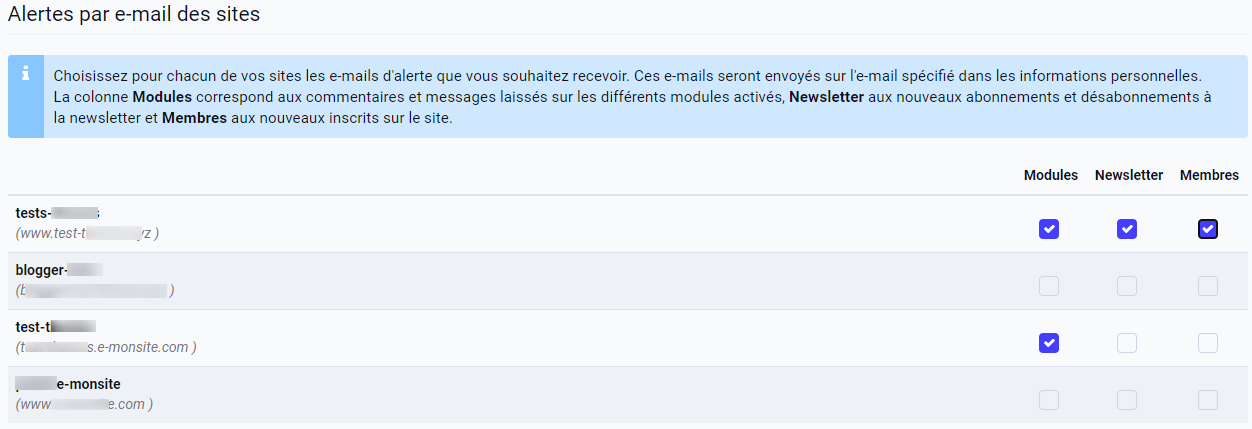
- To tell you about new subscriptions or unsubscriptions to your newsletter.
- When comments and messages are left on the different add-ons you have activated: a notification of a new comment.
- When a new member registration is recorded on the site.
- If you manage several sites with the same account, the alerts linked to the sites (comments, new members, newsletter subscribers, new orders, etc.) can be set separately for each site.
Above all, avoid using for your account an email address linked to a domain name that is itself linked to a service you subscribed to for your site. If you let the domain name expire, the email addresses linked to that domain name will stop working; you would no longer receive notifications or, if needed, be able to recover your account login details.
If you have several email addresses, it is also better not to choose an address linked to your internet service provider (name@your-provider.com, for example), because if you change provider, these addresses may also stop working.
The email address of your site
In the site information settings, you can enter an email address for the site. This email address appears as the sender of the emails automatically sent to your visitors:
- From the site: when a visitor subscribes to the newsletter, places an order in your store or creates a member account, for example.
- From the manager: when you send your newsletter, change the status of an order or confirm a booking.
If you do not enter an email address for the site, a generic email address (to which visitors cannot send replies) is used instead.
Receiving a message sent from a contact form
On your site, you can add contact forms so that your visitors can send you messages or their requests. Each of these contact forms lets you receive the messages either in the manager messaging or at an email address.
If you choose the "email" reception mode for the messages of a contact form, you give the email address(es) the form's messages will be sent to directly in the contact form.
To add or change the email address(es) already linked to a form, you therefore have to edit the contact form itself.
To find out everything about the contact forms of your site, read the tutorial: make a contact form on your website.
Billing address for the online store
If you have activated the Online store add-on on your site, you can specify the email address that appears on the order forms and invoices issued after orders placed in your store. To set this email address, go to the billing section of the Online store settings.
To manage your online store more easily, you can activate the notifications linked to this add-on.
New order notification emails are sent to the email address entered in the personal information of your account, if you have activated these notifications in the account settings and alerts.
These notification emails can include an email each time an order is placed on the site. To activate this option, tick the "Email alert for each order" box in the preferences of the Online store settings.
To find out more about the e-commerce solution offered by emyspot, read the presentation make an e-commerce site and/or the e-commerce tutorials.
If you have a domain name offer on the site, alerts warning you that the email quota is about to be exceeded can be sent to an email address of your choice. This setting is in the domain settings of your manager: click the Manage button and go to the Quota section.
The messaging of your manager
Remember that the messaging at the top of your manager is not directly linked to an email address and, above all, that you cannot use it to send emails.
This messaging is used to receive and reply to messages sent:
- From the contact forms of your site (for those whose chosen reception mode is "Private messaging")
- By other "friend" webmasters
How do you get a personalised email address?
If you want a personalised email address such as me@name-of-my-site.com, you can create POP account email addresses with the domain name offer.
To create or set up these addresses, see the tutorials on domains and POP account emails.